
DRAG & DROP
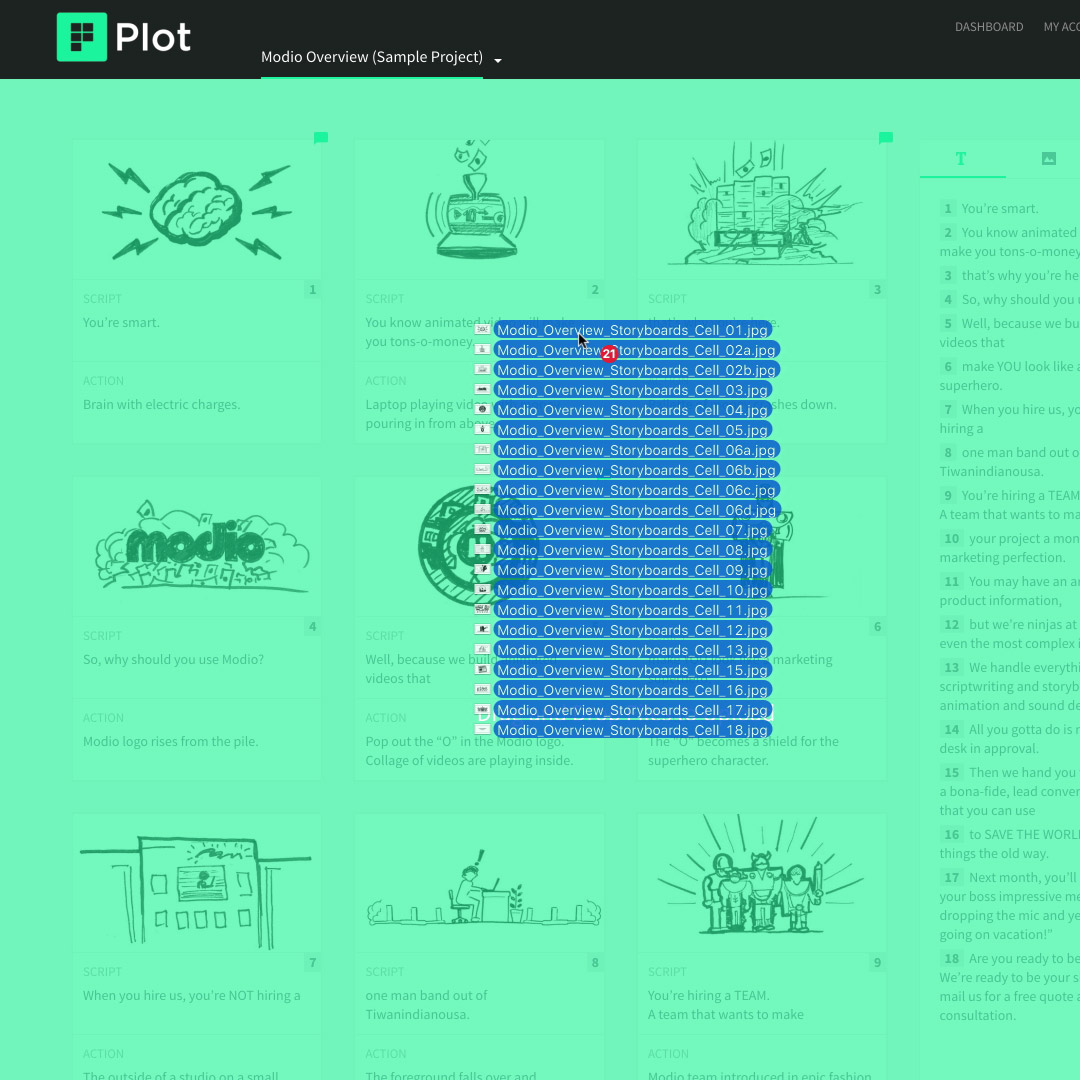
- Select files on your computer.
- Drag and drop them on the browser window.
- Once uploaded, they'll be available in the image toolbar on the right and you can place them into scenes.
We do not compress or resize your images.
If you upload large image files it will result in a larger PDF size when exporting.
Our recommended settings are 1024x576 in a JPG format.
COPY & PASTE
- Right click an image from any website.
- Click 'Copy Image' from the menu. If that option doesn't appear you may need to click on the image first.
- Open the drawing tool in Plot, right click and 'Paste'.
- The image should now be a movable layer!
This currently does not work in the Safari browser.
TUTORIAL
How to add existing images to your storyboard.
How to add existing images to your storyboard.
